Configuring HTTPS SSL Connection to Live Platform portal server Public IP
This section describes how to configure an HTTPS connection to the Live Platform portal server public IP address.
The root certificate loaded to the Live Platform server and the Live Platform portal server must be signed by the same Root CA.
|
1.
|
In the Multitenant portal Navigation pane, open the OVOC Settings page (Configuration > OVOC ). |
|
2.
|
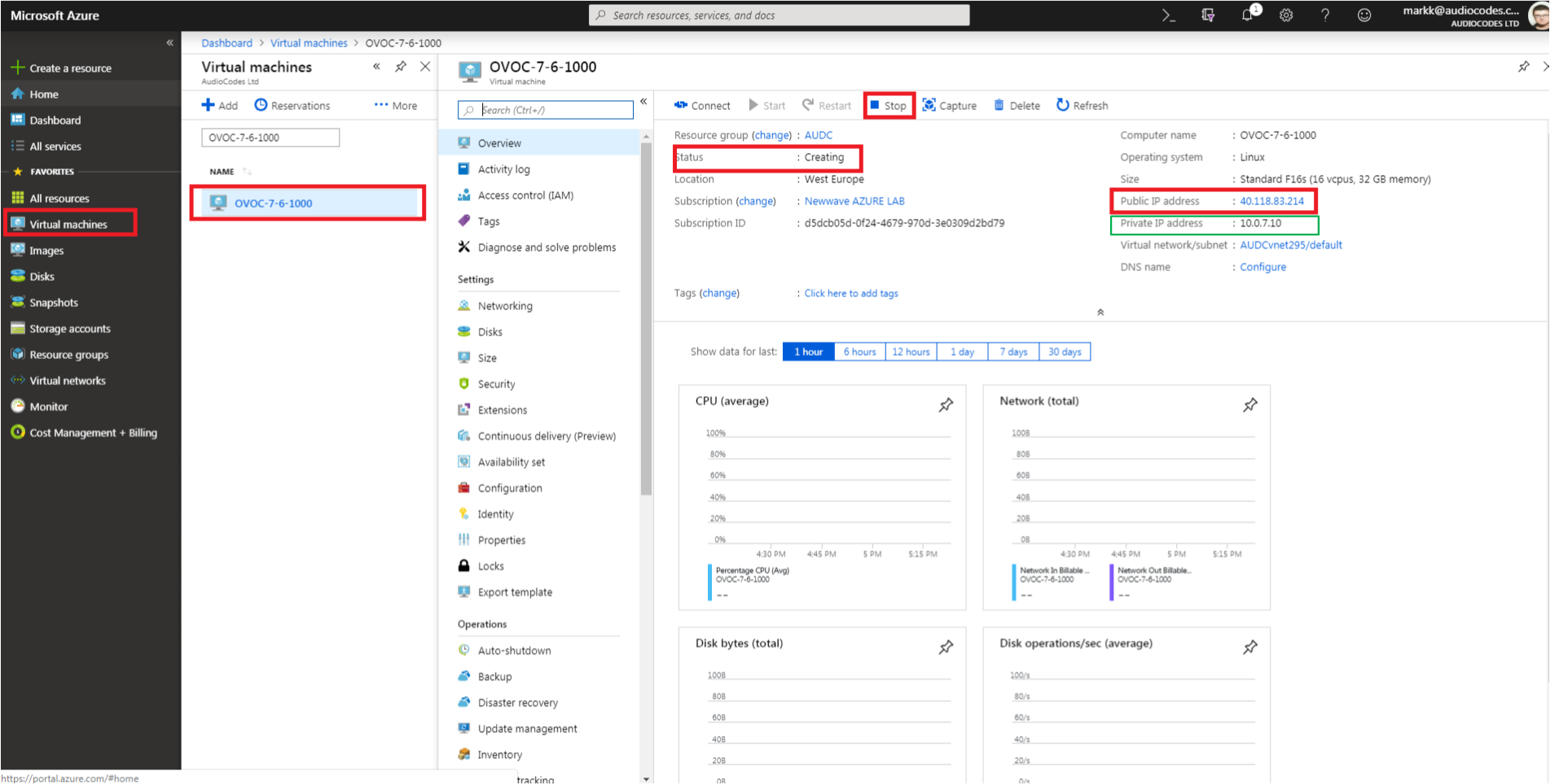
In the Public IP address field, enter the Public IP address of Live Platform portal server on Azure. |
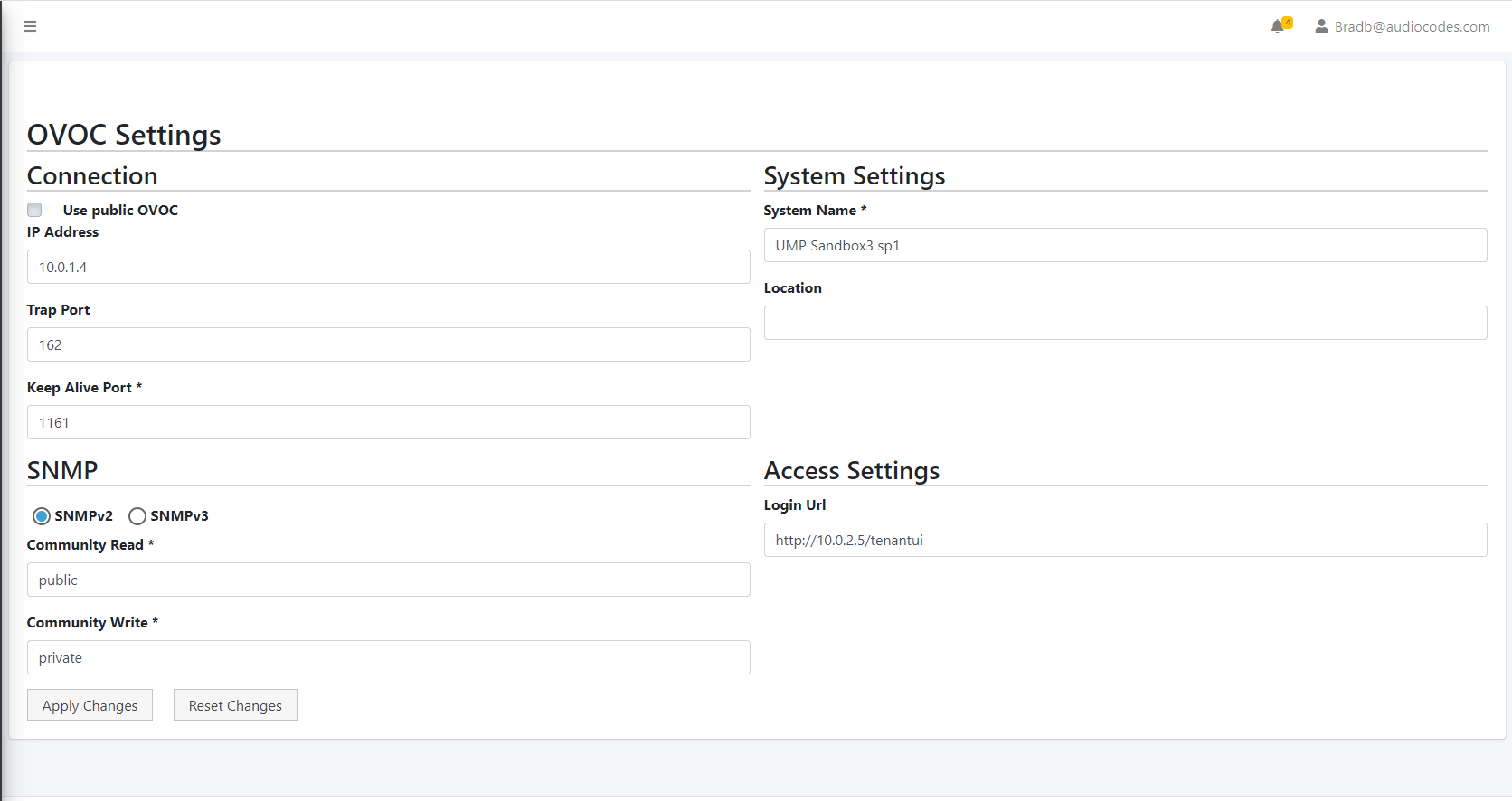
The following figure shows where to extract the IP address of Live Platform portal server on Azure.
|
●
|
Enter Keep Alive Port: 1161 |
|
●
|
Select SNMPv2 and in the Community Read and Community Write fields enter public |
|
●
|
Uncheck the ‘SBC monitor’ flag. |
|
●
|
Enter the following System Settings: |
|
●
|
For the Login URL (used for Single Sign-on and REST connection initiated from OVOC side): Enter the Private IP address of the UMP-365 on Azure and not it's Public IP address/FQDN (e.g. http://127.0.0.1/tenantui). |
Once the initial Single Sign-on connection to the UMP-365 VM is established, the “Login Url” field above is automatically updated to http://169.254.x.x ; do not change this value
|
4.
|
In the OVOC Web interface, do the following: |
|
●
|
Ensure that device and tenant connections are enabled for HTTPS (default). |
|
●
|
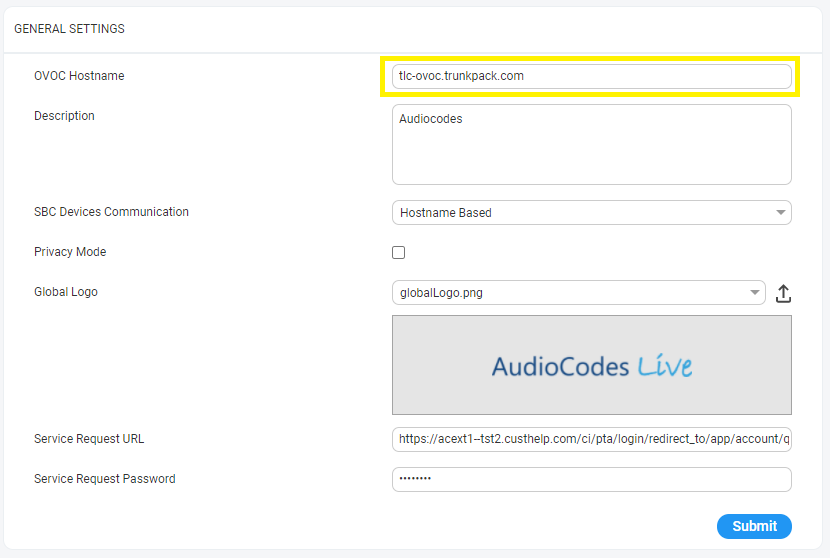
In the General Settings page(System menu >Administration tab > OVOC Server folder > Configuration > General Settings tab), configure the SBC Devices Communication parameter to "Hostname Based"- FQDN host name that is specified in the OVOC server certificate file used to authenticate the connection with devices. |
|
●
|
Verify that the DNS resolves for the OVOC FQDN is successful, for example Google.com: |
Copy
C:\Users\enterprise1user>nslookup www.google.com
Server: tlc-ovoc.trunkpack.com
Address: 10.1.1.10
Non-authoritative answer:
Name:    www.google.com
Addresses: 2a00:1450:4006:801::2004
172.217.18.36
|
5.
|
In the OVOC Server Manager install Custom Certificates (see “Server Certificates Updates”). |
|
6.
|
On the managed SBC devices, do the following: |
|
●
|
Install SSL certificates on managed SBC devices (refer to Section Install Custom Certificates on OVOC Managed Devices in the IOM manual). You must define the following TLS contexts: |
|
❖
|
OVOC Management connection (Context #0) |
|
❖
|
UMP-365 Management connection (Context #1) |
|
❖
|
Microsoft Teams connection (Wildcard certificate) i.e. a separate TLS context must be defined for each service provider. (Context #3) |
|
●
|
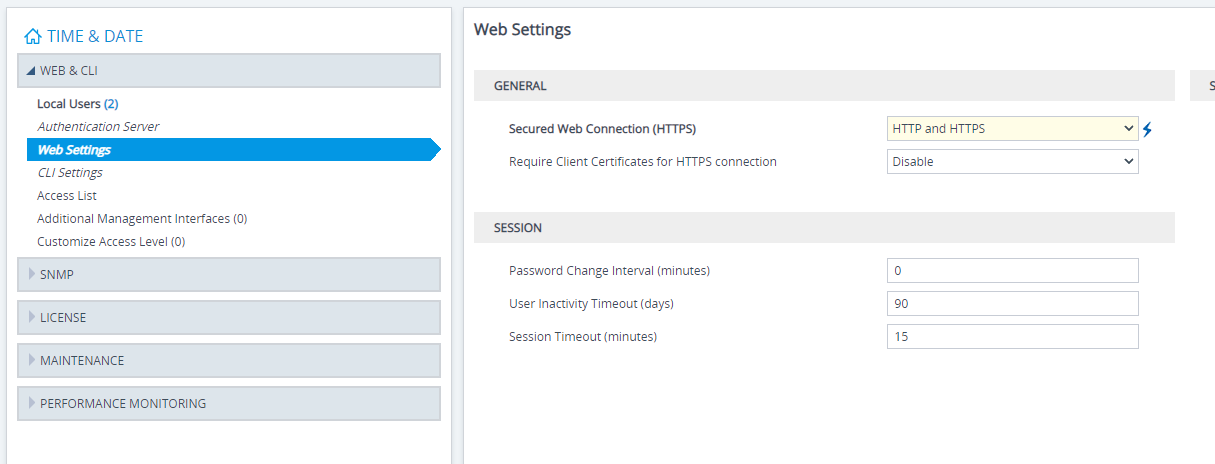
Set parameter Secured Web Connection (HTTPS) to one of the following: |